> ## Documentation Index
> Fetch the complete documentation index at: https://docs.fastgen.com/llms.txt
> Use this file to discover all available pages before exploring further.
# Switch
**Specify variables and execute respective set of actions.**
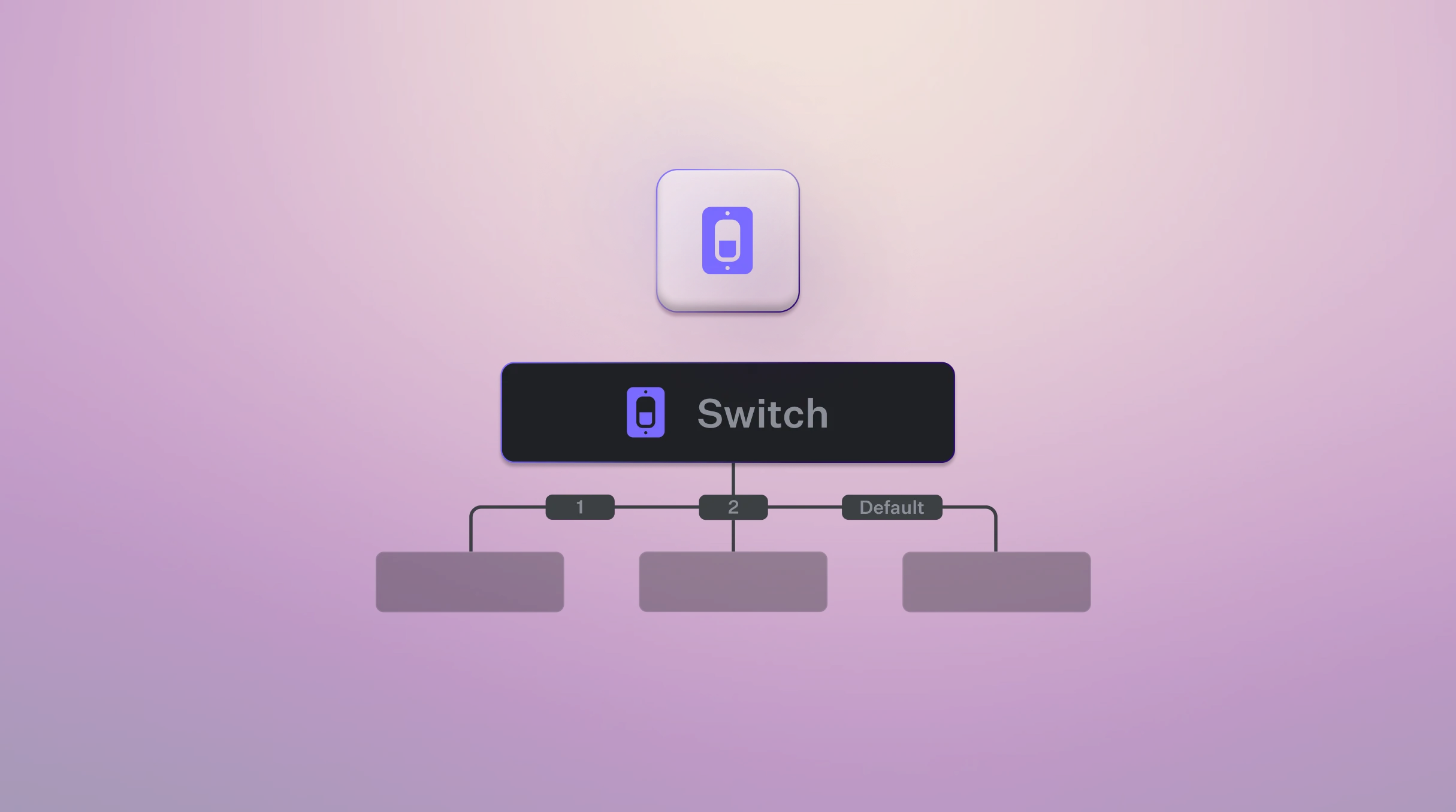 The Switch block allows you to specify a value or variable and then define a set of cases that will be executed based on the value of that variable. This block is useful for creating workflows that respond to specific values or inputs and take different actions based on those inputs.
It uzilizes the same condition syntax as the [If Conditions](/actions/flow-control/if#condition-syntax).
## Example
In the example above we're checking for which `state` has been received by the endpoint. If we receive `CA` or `NY`, we send unique response messages. If we receive any other state, the default path will be triggered.
If several conditions are met, only the first one in sequence will be executed.
The Switch block allows you to specify a value or variable and then define a set of cases that will be executed based on the value of that variable. This block is useful for creating workflows that respond to specific values or inputs and take different actions based on those inputs.
It uzilizes the same condition syntax as the [If Conditions](/actions/flow-control/if#condition-syntax).
## Example
In the example above we're checking for which `state` has been received by the endpoint. If we receive `CA` or `NY`, we send unique response messages. If we receive any other state, the default path will be triggered.
If several conditions are met, only the first one in sequence will be executed.