> ## Documentation Index
> Fetch the complete documentation index at: https://docs.fastgen.com/llms.txt
> Use this file to discover all available pages before exploring further.
# Database Query
**Query your database with SQL**.
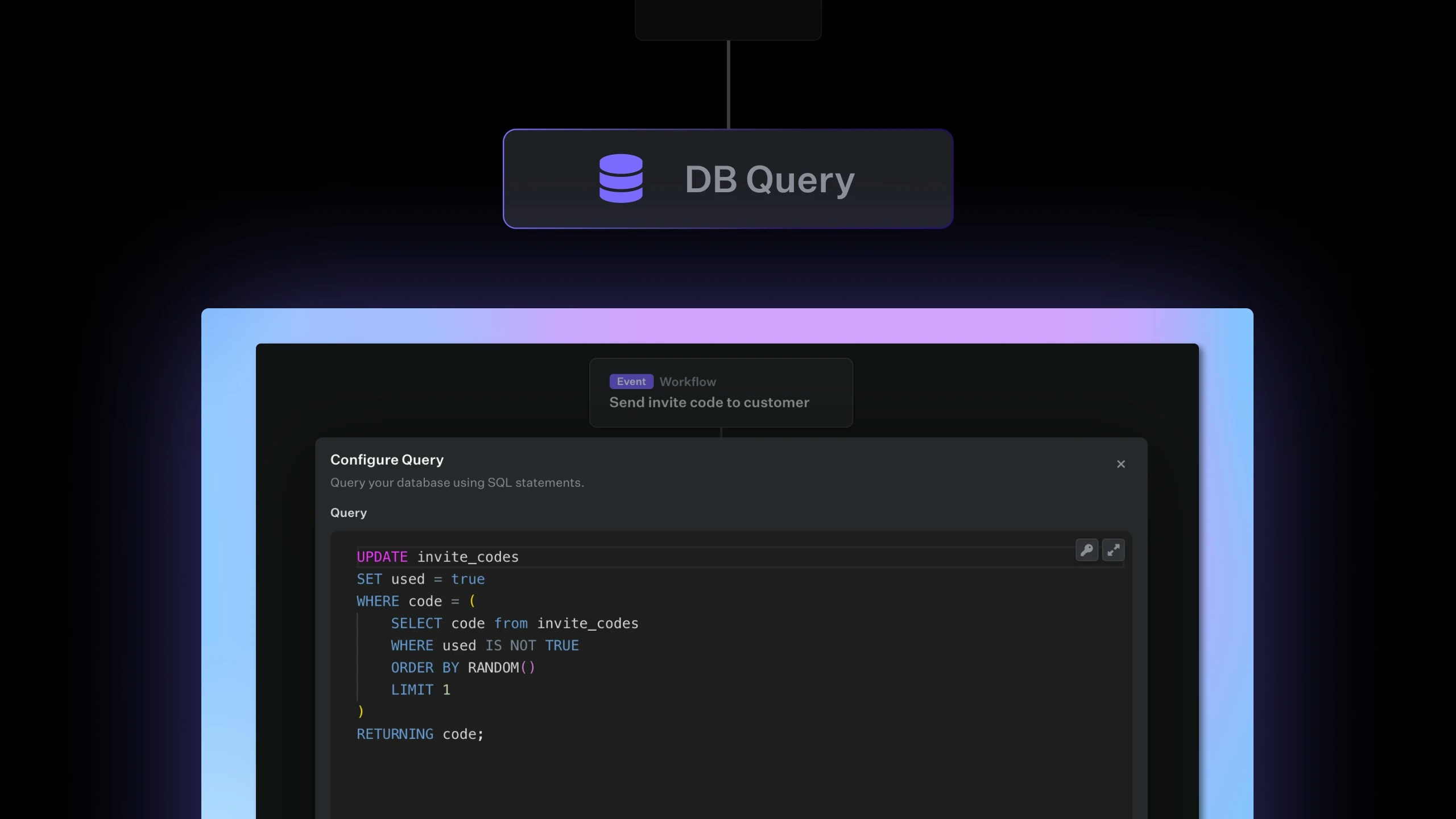 The Database Query action allows you to execute SQL queries on the hosted Postgres database that comes with Fastgen. You can write SQL queries directly in the action, and the result of the query will be returned as a JSON object. This action is useful to retrieve, manipulate, and interact with your data from the database and using it in your endpoints or workflows.
The SQL query can include `SELECT`, `INSERT`, `UPDATE`, `DELETE`, or any other valid SQL statement supported by PostgreSQL.
The DB query action also works if you have connected your own [External DB](/database/connect-external-db)
## Output
The output of the DB query action which will be accessible under `{{$action['my-step']}}` will have two properties,
* `{{$action['my-step'].Error}}`
and
* `{{$action['my-step'].Result}}`
Both properties are always present but individually might have empty values.
```json theme={null}
{
"Error": "Some SQL error text OR empty string",
"Result": [] // A list of objects containing the query result
}
```
## Example
Let's a assume we have a table called `orders` which contains
* `customer_name`, `product_name`, `order_date` and `state`
We want to create a query that returns all orders within the last year from California and put the following:
```SQL theme={null}
SELECT *
FROM orders
WHERE state = 'California' AND order_date >= CURRENT_DATE - INTERVAL '365' DAY;
```
Here's what the finished endpoint looks like in Fastgen:
In the example above we access the result of the query with
```json theme={null}
{
"result": "{{$action['california-orders'].Result}}"
}
```
## Test Query
In the SQL editor you are able to test your statements with `Test Query`. If we test our query from the example above we receive the following:
The Database Query action allows you to execute SQL queries on the hosted Postgres database that comes with Fastgen. You can write SQL queries directly in the action, and the result of the query will be returned as a JSON object. This action is useful to retrieve, manipulate, and interact with your data from the database and using it in your endpoints or workflows.
The SQL query can include `SELECT`, `INSERT`, `UPDATE`, `DELETE`, or any other valid SQL statement supported by PostgreSQL.
The DB query action also works if you have connected your own [External DB](/database/connect-external-db)
## Output
The output of the DB query action which will be accessible under `{{$action['my-step']}}` will have two properties,
* `{{$action['my-step'].Error}}`
and
* `{{$action['my-step'].Result}}`
Both properties are always present but individually might have empty values.
```json theme={null}
{
"Error": "Some SQL error text OR empty string",
"Result": [] // A list of objects containing the query result
}
```
## Example
Let's a assume we have a table called `orders` which contains
* `customer_name`, `product_name`, `order_date` and `state`
We want to create a query that returns all orders within the last year from California and put the following:
```SQL theme={null}
SELECT *
FROM orders
WHERE state = 'California' AND order_date >= CURRENT_DATE - INTERVAL '365' DAY;
```
Here's what the finished endpoint looks like in Fastgen:
In the example above we access the result of the query with
```json theme={null}
{
"result": "{{$action['california-orders'].Result}}"
}
```
## Test Query
In the SQL editor you are able to test your statements with `Test Query`. If we test our query from the example above we receive the following:
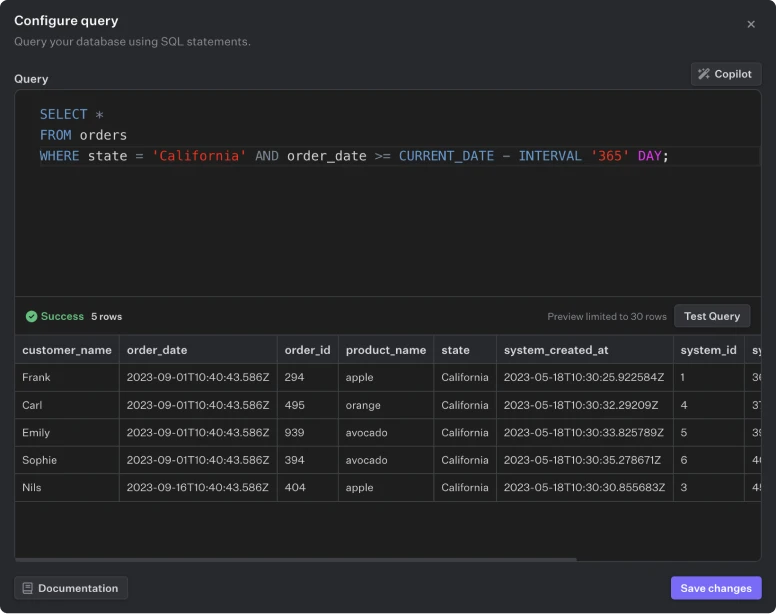 The test result of SQL queries like `Select` will be displayed directly in the action as shown in the picture above. If you test statements which will modify the database like `Insert` or `Update` the result will only show if correct SQL syntax has been applied, the test queries to not modify the database.
For SQL statements with incorrect syntax, you will receive `Invalid SQL: ERROR` while testing.
## SQL Copilot
The SQL editor includes a SQL Copilot which will assist you in creating your desired SQL statements:
The test result of SQL queries like `Select` will be displayed directly in the action as shown in the picture above. If you test statements which will modify the database like `Insert` or `Update` the result will only show if correct SQL syntax has been applied, the test queries to not modify the database.
For SQL statements with incorrect syntax, you will receive `Invalid SQL: ERROR` while testing.
## SQL Copilot
The SQL editor includes a SQL Copilot which will assist you in creating your desired SQL statements:
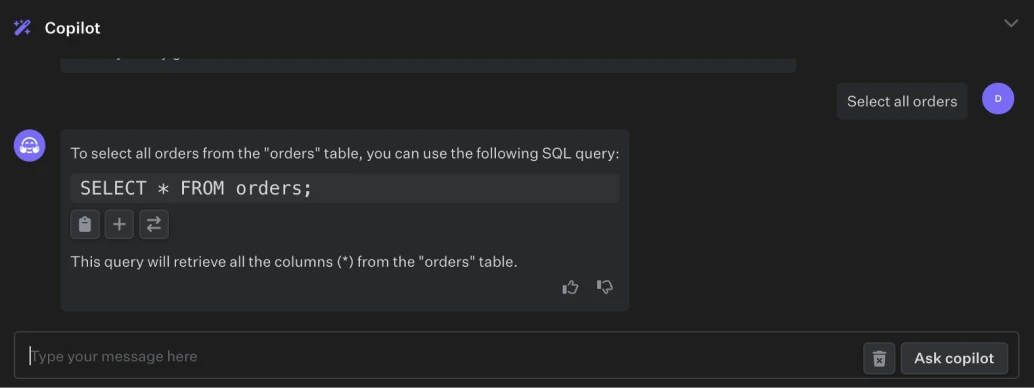 After prompting the Copilot it will return SQL queries which you can `copy`, `add to query` or `replace query`.
## Lessons
Learn more about the Data Base Query Action, among other things, in the following Fastgen University lessons:
* [Webhook-SQL](/university/step-by-step/webhook-sql)
After prompting the Copilot it will return SQL queries which you can `copy`, `add to query` or `replace query`.
## Lessons
Learn more about the Data Base Query Action, among other things, in the following Fastgen University lessons:
* [Webhook-SQL](/university/step-by-step/webhook-sql)