> ## Documentation Index
> Fetch the complete documentation index at: https://docs.fastgen.com/llms.txt
> Use this file to discover all available pages before exploring further.
# Email (SMTP)
**Set up transactional emails or create time based campaigns**.
 ## Overview
This action allows you to send email messages using the Simple Mail Transfer Protocol (SMTP). It is useful for sending transactional emails to your customers, internal alerts or creating email campaigns that run on a time interval.
## Set Up
### General Settings
Navigate to your integration settings and start configuring your SMTP setup:
* **SMTP Server** : Your host or IP address
* **From email address** : The email address you want to send emails from
* **Port** : Usually 25 or 587
* **Authentication** : Your email username and password of that email account
### Google Workspace/Gmail Set Up
If you are using Google as your email domain provider, follow these steps to authenticate:
* **SMTP Server** : smtp.gmail.com
* **From email address** : The email address you want to send emails from
* **Port** : 587 (TLS) or 465 (SSL)
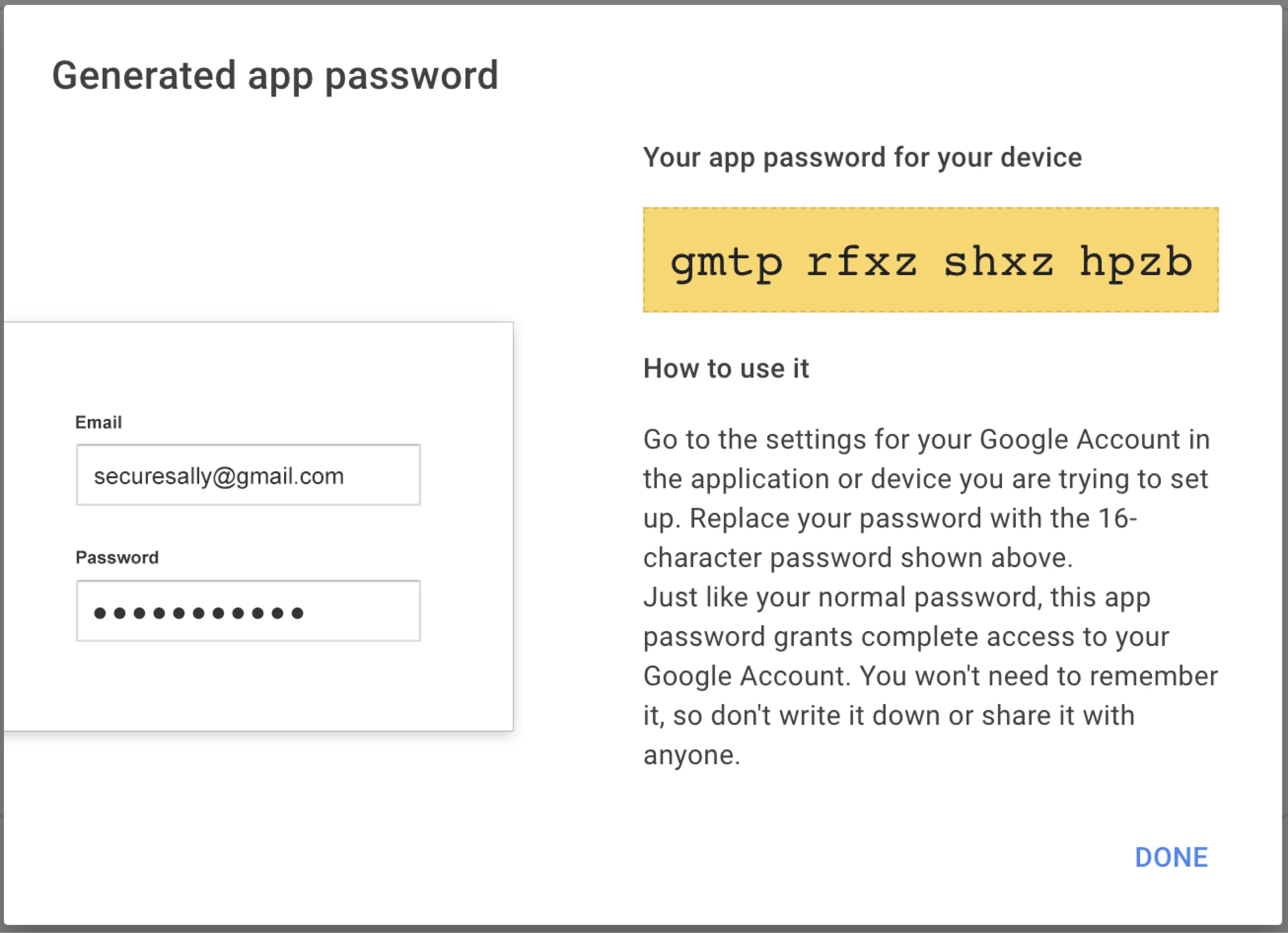
For Authentication, select *Basic Auth* and use the Google account email address as your Username. For the password we need to head to your Google settings:
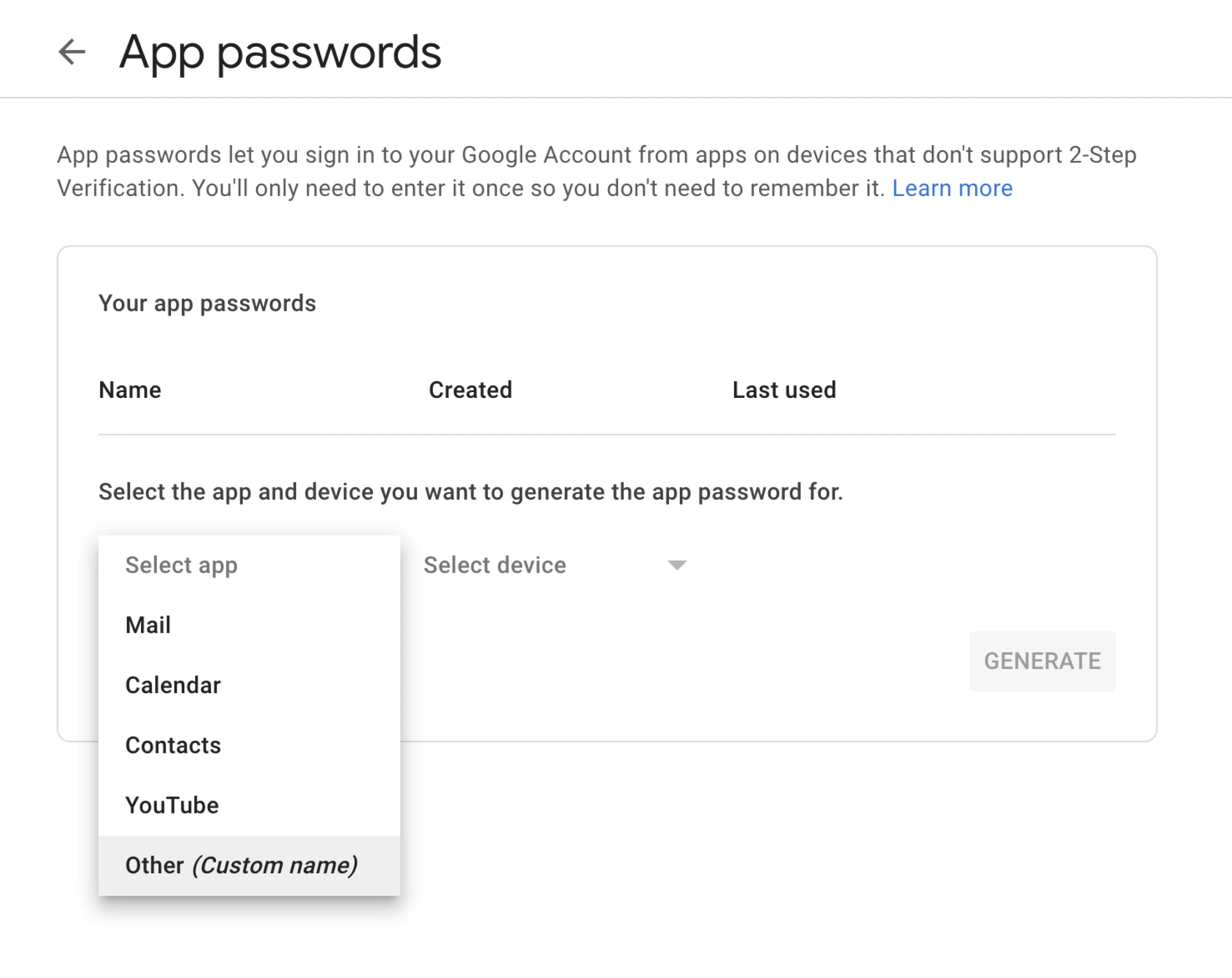
If your Google account is 2FA protected (which it should!), go to your account settings and visit your [App Password Settings](https://myaccount.google.com/apppasswords).
## Overview
This action allows you to send email messages using the Simple Mail Transfer Protocol (SMTP). It is useful for sending transactional emails to your customers, internal alerts or creating email campaigns that run on a time interval.
## Set Up
### General Settings
Navigate to your integration settings and start configuring your SMTP setup:
* **SMTP Server** : Your host or IP address
* **From email address** : The email address you want to send emails from
* **Port** : Usually 25 or 587
* **Authentication** : Your email username and password of that email account
### Google Workspace/Gmail Set Up
If you are using Google as your email domain provider, follow these steps to authenticate:
* **SMTP Server** : smtp.gmail.com
* **From email address** : The email address you want to send emails from
* **Port** : 587 (TLS) or 465 (SSL)
For Authentication, select *Basic Auth* and use the Google account email address as your Username. For the password we need to head to your Google settings:
If your Google account is 2FA protected (which it should!), go to your account settings and visit your [App Password Settings](https://myaccount.google.com/apppasswords).
 If you do not have 2FA enabled, search for "Less secure app acceess" in your Google settings and allow access in case it is not available already. If you can't find either of the options, please contact your Google Workspace Administrator as they might have disabled them.
## Lessons
Learn more about the Email SMTP Action, among other things, in the following Fastgen University lessons:
* [Webhook-SQL](/university/step-by-step/webhook-sql)
If you do not have 2FA enabled, search for "Less secure app acceess" in your Google settings and allow access in case it is not available already. If you can't find either of the options, please contact your Google Workspace Administrator as they might have disabled them.
## Lessons
Learn more about the Email SMTP Action, among other things, in the following Fastgen University lessons:
* [Webhook-SQL](/university/step-by-step/webhook-sql)